Table of Contents
Learn how to fix the Docker Desktop v4.78.0 installation failed error “must be owned by an elevated account” on Windows. Step-by-step guide with commands and solutions.
If you’re trying to install Docker Desktop and run into the error:
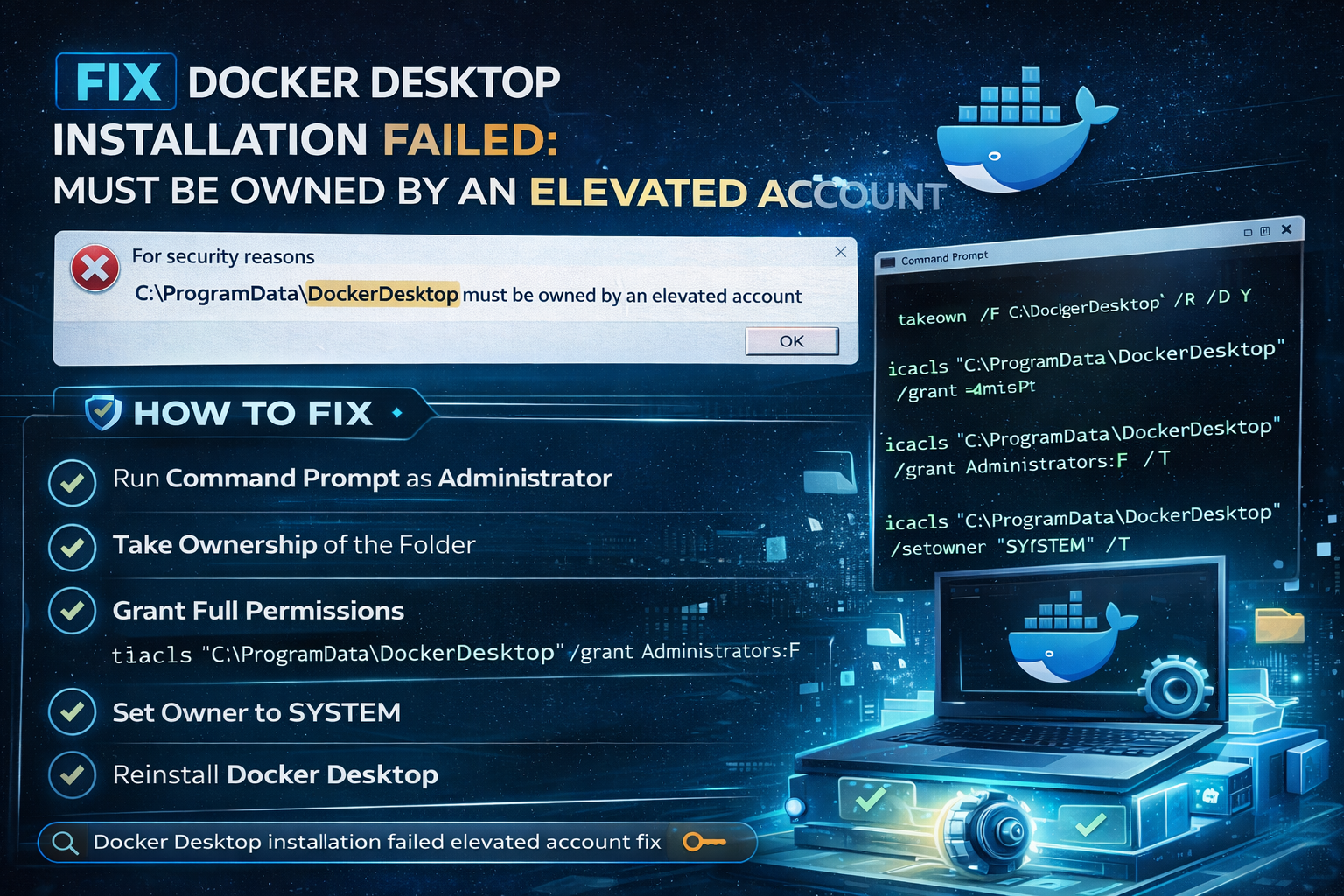
“For security reasons C:\ProgramData\DockerDesktop must be owned by an elevated account”
—you’re not alone. This is a common issue on Windows systems, especially after a failed installation or permission changes.
In this guide, you’ll learn why this error happens and how to fix it quickly, even if you’re not an expert.
Why This Error Happens
Docker Desktop requires strict security permissions to function correctly. The error appears when:
- The folder
C:\ProgramData\DockerDesktopis owned by the wrong user - Permissions were modified manually or by another program
- A previous Docker installation failed
- Antivirus or corporate policies altered access rights
In simple terms: Docker doesn’t trust the folder ownership, so it refuses to install.
Quick Fix (Step-by-Step)
Follow these steps carefully:
Method 1:
1. Delete C:\ProgramData\DockerDesktop if present
2. Run Docker installer as administrator (right click on exe, “Run as administrator”)
3. The installer should work fine
If not work, then try the second method.
Method 2:
1. Run Command Prompt as Administrator
- Click Start
- Type
cmd - Right-click → Run as administrator
2. Take Ownership of the Folder
Run this command:
takeown /F "C:\ProgramData\DockerDesktop" /R /D Y
This forces Windows to give you control over the folder.
3. Grant Full Permissions
Next, run:
icacls "C:\ProgramData\DockerDesktop" /grant Administrators:F /T
This ensures administrators have full access.
4. Set Owner to SYSTEM (Recommended)
Docker prefers SYSTEM-level ownership:
icacls "C:\ProgramData\DockerDesktop" /setowner "SYSTEM" /T
5. Reinstall Docker Desktop
- Close all apps
- Right-click the Docker installer
- Select Run as administrator
Alternative Fix: Clean Reinstall
If the issue persists, try a fresh reset:
Delete the Folder
rmdir /S /Q "C:\ProgramData\DockerDesktop"
Then reinstall Docker Desktop.
Common Mistakes to Avoid
- Running commands without administrator privileges
- Skipping the ownership step
- Letting antivirus block permission changes
- Installing Docker without admin rights
Pro Tips
- Temporarily disable antivirus during installation
- Ensure your Windows account is part of the Administrators group
- Restart your system after fixing permissions
Frequently Asked Questions
Is this error dangerous?
No, it’s a security safeguard—not a system failure.
Can I skip fixing permissions?
No. Docker won’t install until ownership is corrected.
Does this happen on all Windows versions?
Mostly on Windows 10 and 11, especially with prior installs.
Final Thoughts
This Docker Desktop installation error might look technical, but the fix is straightforward once you understand the root cause: folder ownership and permissions.
By following the steps above, you should be able to install Docker successfully and get back to development without issues.