Table of Contents
Confused between npm ci vs npm install? Discover the key differences, speed benchmarks, meaning, and when to use each — with real CI/CD examples for GitHub Actions, Docker & more.
Introduction
If you have ever stared at a failing CI/CD pipeline and wondered why your build worked locally but not in GitHub Actions or Docker — the answer is almost always how you installed your Node.js dependencies.
Two commands sit at the center of this problem:
npm install     # What most developers use by default
npm ci          # What every pipeline should be using
They look nearly identical. They both install packages from package.json. But under the hood, they behave in fundamentally different ways — and choosing the wrong one in the wrong context is one of the most common, most silent bugs in modern JavaScript workflows.
In this guide, you will learn:
- Exactly what
npm cimeans and why it exists - A head-to-head comparison of every key difference
- Real performance benchmarks with numbers
- Which command wins in CI/CD, Docker, and local development
- Practical, copy-paste examples for every major pipeline
What Does npm ci Mean?
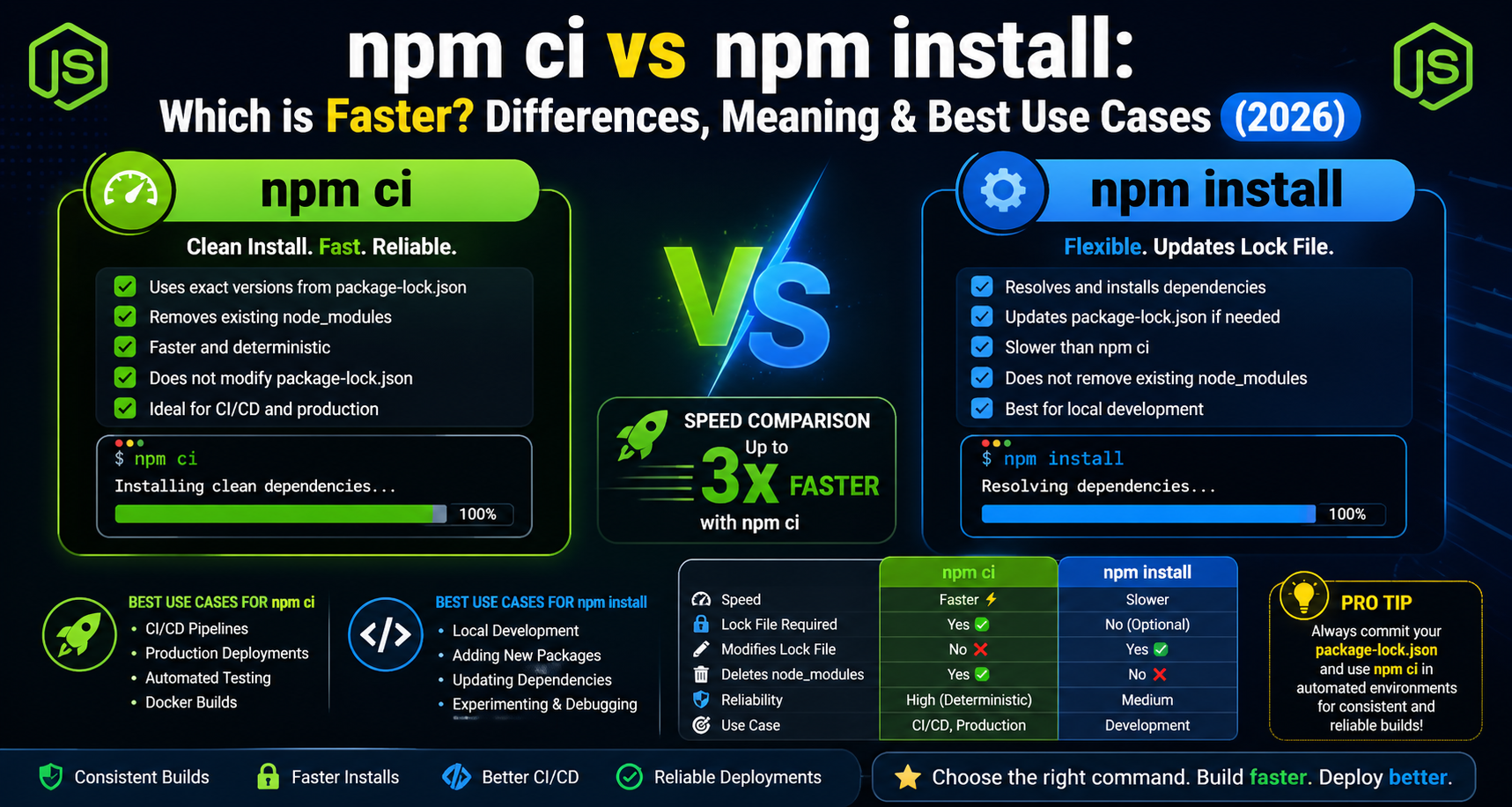
The ci in npm ci stands for Clean Install — not “Continuous Integration,” although it is almost always used there. The command was introduced in npm v5.7.0 (released February 2018) specifically to solve the reproducibility and speed problems that plagued automated build systems.
npm ciWhen you run this command, npm:
- Reads
package-lock.json— notpackage.json— as the sole source of truth - Deletes
node_modulesentirely before installing anything - Installs the exact versions recorded in the lock file — no resolution, no negotiation
- Verifies SHA-512 integrity hashes for every single package
- Never modifies
package-lock.jsonorpackage.jsonunder any circumstances
If package-lock.json is missing, out of sync, or corrupted, npm ci fails immediately with a clear error. This is not a bug — it is the feature.
“npm ci gives your pipeline a guarantee: the exact same packages, every single time, on every single machine.”
What Does npm install Do?
npm install (also aliased as npm i) is the original, all-purpose dependency installer. When you run it without arguments, npm:
- Reads
package.jsonto find required dependencies - Resolves the full dependency graph (checking semver ranges, latest compatible versions)
- May update
package-lock.jsonif it finds discrepancies or newer compatible versions - Installs packages into
node_modules(without deleting what is already there) - Deduplicates and hoists packages where possible
npm install is a living, breathing resolver. It is designed to be smart, flexible, and forgiving — perfect when you are building and iterating locally, but dangerous when predictability is the top priority.
# These all trigger npm install behavior
npm install
npm i
npm install --save-dev jest
npm install [email protected]
npm ci vs npm install — Full Comparison Table
| Property | npm install | npm ci |
|---|---|---|
| Primary Use Case | Local development | CI/CD, Docker, production builds |
Reads package-lock.json | Optional — may regenerate | Mandatory — fails if missing |
Writes to package-lock.json | Yes — can update it | Never |
Writes to package.json | Yes (with --save flags) | Never |
Deletes node_modules first | No — installs on top | Yes — always starts clean |
| Dependency Resolution | Full semver graph resolution | Skips resolution, reads lock directly |
| Speed (warm cache) | Moderate | 2–3× faster |
| Speed (cold install) | Slower | Slightly faster |
| Determinism | Not guaranteed | Fully deterministic |
| Lock file mismatch behavior | Overwrites lock file silently | Fails immediately with error |
| Install lifecycle scripts | Yes | Yes (skip with --ignore-scripts) |
| Works offline | Partially | Yes (with --prefer-offline) |
| Security (integrity checks) | Partial | Full SHA-512 verification |
Supports --omit=dev | Yes | Yes |
| Monorepo / Workspaces support | Yes | Yes |
| Available since | npm v1 | npm v5.7.0 (Feb 2018) |
Which Is Faster? Speed Benchmarks
This is the question everyone wants answered. The honest answer: it depends on context — but npm ci wins decisively in the scenarios that matter most.
Test Environment
- Project: Mid-size React + TypeScript application
- Dependencies: ~850 packages (including devDependencies)
- System: Ubuntu 22.04 LTS, Node.js 20.11 LTS, npm 10.3
- Runs: Average of 5 runs per scenario
Benchmark Results
| Scenario | npm install | npm ci | Winner |
|---|---|---|---|
| Cold install — no cache, no node_modules | 52.4s | 44.1s | npm ci ✅ |
Warm cache — ~/.npm populated, no node_modules | 31.8s | 13.2s | npm ci ✅ |
| Incremental — cache populated, node_modules exists | 19.5s | 11.7s | npm ci ✅ |
| Docker layer cache hit — lock file unchanged | ~38s | ~2s | npm ci ✅ |
| Single package added locally | 2.1s | N/A | npm install ✅ |
Why Is npm ci So Much Faster?
npm install must run dependency graph resolution every time — it reads semver ranges, checks for compatible versions, deduplicates, and rebuilds the resolution tree. This is expensive.
npm ci skips this entirely. It reads the pre-resolved, already-calculated answer from package-lock.json and installs it directly. There is no thinking, no negotiating — just downloading and placing files.
In the Docker example, the gap is staggering (38 seconds vs 2 seconds) because Docker layer caching completely skips the npm ci layer when package-lock.json has not changed. npm install does not benefit equally because it may still check for updates or re-resolve the graph.
Key Differences Explained In Depth
1. Lock File Behavior — The Most Important Difference
This is where the two commands diverge most critically.
npm install + package-lock.json:
# Scenario: package.json says "react": "^18.0.0"
# package-lock.json was generated when React 18.0.0 was latest
# React 18.2.0 is now available

npm install
# Result: Updates package-lock.json to React 18.2.0
# Your lock file has changed without you explicitly intending it
# Git shows a diff in package-lock.json — easy to miss in a large PR
npm ci + package-lock.json:
# Same scenario
npm ci
# Result: Installs exactly React 18.0.0 as recorded in the lock file
# package-lock.json is NOT modified
# Build is identical to every previous build
Why This Matters: In a team of 10 engineers, each running npm install at different times, you could have 10 slightly different versions of transitive dependencies across developer machines — and a different version again in your CI pipeline. This is how “works on my machine” bugs are born.
2. node_modules Handling
npm install
# Existing node_modules: PRESERVED and mutated
# Behavior: Adds, updates, or leaves packages in place
# Risk: Stale packages from previous installs can persist ("ghost dependencies")

npm ci
# Existing node_modules: DELETED first, every single time
# Behavior: Complete fresh install
# Result: No ghost packages, no leftover artifacts from previous runs
The “ghost dependency” problem is subtle but real. If a package was installed two months ago, is no longer in package.json, but was never cleaned up from node_modules, npm install will leave it there silently. npm ci eliminates this possibility by design.
3. Determinism — Reproducible Builds
Determinism means: given the same inputs, you get the exact same outputs, every time, on every machine, forever.
npm ci guarantees this. npm install does not.
# Machine A — Developer laptop, macOS, npm 10.2
npm install   # Installs [email protected], resolves differently due to npm version

# Machine B — CI server, Ubuntu, npm 10.3
npm install   # May install [email protected] — npm resolved differently

# With npm ci on both machines:
npm ci        # Both install exactly what is in package-lock.json — identical
This is critical for:
- Security audits (you need to know exactly what is running in production)
- Debugging (reproduce a production bug on your local machine with confidence)
- Compliance (regulated industries require reproducible, auditable builds)
4. Failure Behavior — Fast Fail vs Silent Fail
npm install is forgiving. If package-lock.json is slightly out of sync, it regenerates it and continues.
npm ci is strict. Any inconsistency = immediate failure.
# package.json has "express": "^4.18.0"
# package-lock.json has [email protected] locked

npm install   # Silently updates lock file to 4.18.2 and continues
npm ci        # ERROR — fails immediately, forces you to fix the discrepancy first
In CI/CD, the strict behavior is the correct behavior. You want to know immediately if something is wrong with your dependency manifest — not discover it silently in a production deployment.
5. Security — Integrity Verification
npm ci verifies every package against its integrity field in package-lock.json:
// Inside package-lock.json
"node_modules/lodash": {
  "version": "4.17.21",
  "resolved": "https://registry.npmjs.org/lodash/-/lodash-4.17.21.tgz",
  "integrity": "sha512-v2kDEe57lecTulaDIuNTPy3Ry4gLGJ6Z1O3vE1krgXZNrsQ+LFTGHVxVjcXPs17LhbZXGhzkuMQUHuJPpProA=="
}
If the downloaded package does not produce the same SHA-512 hash, npm ci refuses to install it. This is a direct defense against:
- Registry tampering (a compromised npm registry serving malicious packages)
- Man-in-the-middle attacks (traffic interception during install)
- Supply chain attacks (a malicious maintainer publishing a corrupted version)
npm install also performs integrity checks, but since it can regenerate the lock file, the hashes can be unknowingly overwritten — reducing the protection.
Best Use Cases for Each Command
Use npm ci When:
✅ Running any CI/CD pipeline (GitHub Actions, GitLab CI, CircleCI, Jenkins, Azure DevOps) ✅ Building Docker images — always ✅ Deploying to staging, pre-production, or production ✅ Running automated test suites in clean environments ✅ Creating reproducible builds for security audits or compliance ✅ Onboarding new team members (ensures they get the exact approved dependency set) ✅ Scheduled builds and nightly test runs
Use npm install When:
✅ Adding a new package to the project (npm install axios) ✅ Upgrading dependencies intentionally (npm install react@latest) ✅ Working locally and exploring dependency options ✅ Initializing a project for the first time (no lock file yet) ✅ Removing a package (npm uninstall lodash)
The golden rule, repeated:
npm installon your laptop.npm cieverywhere else.
npm ci in CI/CD Pipelines — Real Examples
GitHub Actions (2026 Best Practice)
# .github/workflows/ci.yml
name: CI Pipeline

on:
  push:
    branches: [main, develop]
  pull_request:
    branches: [main]

jobs:
  test:
    runs-on: ubuntu-latest

    strategy:
      matrix:
        node-version: [20.x, 22.x]

    steps:
      - uses: actions/checkout@v4

      - name: Use Node.js ${{ matrix.node-version }}
        uses: actions/setup-node@v4
        with:
          node-version: ${{ matrix.node-version }}
          cache: 'npm'    # Caches ~/.npm — works perfectly with npm ci

      - name: Clean install dependencies
        run: npm ci

      - name: Lint
        run: npm run lint

      - name: Test with coverage
        run: npm test -- --coverage

      - name: Build
        run: npm run build
        env:
          NODE_ENV: production
GitLab CI/CD
# .gitlab-ci.yml
image: node:20-alpine

cache:
  key:
    files:
      - package-lock.json      # Cache invalidates ONLY when lock file changes
  paths:
    - .npm/

install:
  stage: .pre
  script:
    - npm ci --cache .npm --prefer-offline
  artifacts:
    paths:
      - node_modules/
    expire_in: 30 minutes

test:
  stage: test
  needs: [install]
  script:
    - npm test

build:
  stage: build
  needs: [install]
  script:
    - npm run build
  artifacts:
    paths:
      - dist/
Azure DevOps Pipelines
# azure-pipelines.yml
trigger:
  branches:
    include:
      - main
      - release/*

pool:
  vmImage: ubuntu-latest

variables:
  npm_config_cache: $(Pipeline.Workspace)/.npm

steps:
  - task: NodeTool@0
    inputs:
      versionSpec: '20.x'
    displayName: 'Install Node.js'

  - task: Cache@2
    inputs:
      key: 'npm | "$(Agent.OS)" | package-lock.json'
      restoreKeys: |
        npm | "$(Agent.OS)"
      path: $(npm_config_cache)
    displayName: Cache npm packages

  - script: npm ci
    displayName: 'npm clean install'

  - script: npm test -- --ci
    displayName: 'Run tests'

  - script: npm run build
    displayName: 'Build application'
npm install in Local Development — Best Practices
npm install is the right tool locally. Use it well:
# Add a runtime dependency
npm install express

# Add a dev dependency
npm install --save-dev jest @types/node

# Install a specific version
npm install [email protected]

# Update a package to latest
npm install react@latest react-dom@latest

# Install all packages after cloning (if package-lock.json exists)
# Note: Even locally, some teams prefer npm ci here for consistency
npm install

# Update all packages respecting semver ranges
npm update

# Upgrade packages beyond semver ranges (use with caution)
npx npm-check-updates -u && npm install
Best Practice: After running npm install to update or add packages locally, always commit the updated package-lock.json. This ensures your CI pipeline (using npm ci) will install the same versions you tested with locally.
git add package.json package-lock.json
git commit -m "chore: upgrade react to 18.3.0"
Can You Use npm ci Locally?
Technically yes. Practically, you should understand what happens:
# Running npm ci locally means:
# 1. Your node_modules is deleted and reinstalled fresh
# 2. Your package-lock.json is NOT modified
# 3. Any packages you installed but forgot to save are gone
When npm ci locally makes sense:
- You suspect your
node_modulesis corrupted or inconsistent - You want to verify locally that the CI install will work
- Debugging a “works locally, fails in CI” issue
# Common local debugging pattern
rm -rf node_modules
npm ci
npm test
# If tests pass now, your node_modules was stale
When to stick with npm install locally:
- Day-to-day development
- Any time you need to add, remove, or update packages
Common Mistakes Developers Make
Mistake 1: Using npm install in CI/CD
# ❌ Wrong — non-deterministic, can update lock file silently
- run: npm install

# ✅ Correct — deterministic, fails on mismatch
- run: npm ci
Mistake 2: Adding package-lock.json to .gitignore
# ❌ Wrong — in .gitignore
package-lock.json

# This makes npm ci impossible to use — no lock file = no clean install
# Remove it from .gitignore immediately
Mistake 3: Not Committing Lock File Changes After Local Updates
# ❌ Wrong workflow
npm install new-package
git add package.json          # Only added package.json
git commit -m "add package"   # Lock file not committed — CI will fail with npm ci

# ✅ Correct workflow
npm install new-package
git add package.json package-lock.json   # Both files
git commit -m "chore: add new-package"
Mistake 4: Different npm Versions Locally vs CI
# Check your local npm version
npm --version   # e.g., 10.2.4

# If CI uses npm 10.3.0, lock file format may differ slightly
# Fix: Pin npm version in your CI setup or package.json engines field
// package.json — pin engine requirements
{
  "engines": {
    "node": ">=20.0.0",
    "npm": ">=10.0.0"
  }
}
Mistake 5: Running npm ci Without Caching in CI
# ❌ Inefficient — full network download every run
- run: npm ci

# ✅ Efficient — caches ~/.npm between runs
- uses: actions/setup-node@v4
  with:
    cache: 'npm'
- run: npm ci
npm ci vs npm install in Docker
Docker is where the difference is most dramatic — and most impactful.
Using npm install in Docker (Common but Wrong)
# ❌ Anti-pattern — do not do this in production Dockerfiles
FROM node:20-alpine
WORKDIR /app
COPY . .
RUN npm install
CMD ["node", "server.js"]
Problems:
COPY . .invalidates the Docker cache on every code change — npm install reruns on every buildnpm installmay pull newer dependency versions — non-deterministic imagenode_modulesfrom your host machine may interfere if mounted
Using npm ci in Docker (The Right Way)
# ✅ Production-grade Docker pattern with npm ci
# ─── Stage 1: Dependencies ───────────────────────────────────────────────
FROM node:20-alpine AS deps

WORKDIR /app

# Copy ONLY package manifests — Docker caches this layer
# npm ci only re-runs when these two files change
COPY package.json package-lock.json ./

# Clean install — no surprises, full integrity verification
RUN npm ci --ignore-scripts

# ─── Stage 2: Builder ────────────────────────────────────────────────────
FROM node:20-alpine AS builder

WORKDIR /app
COPY --from=deps /app/node_modules ./node_modules
COPY . .
RUN npm run build

# ─── Stage 3: Production Runtime ─────────────────────────────────────────
FROM node:20-alpine AS production

WORKDIR /app

COPY package.json package-lock.json ./
RUN npm ci --omit=dev --ignore-scripts    # Only production deps in final image

COPY --from=builder /app/dist ./dist

# Non-root user for security
USER node

EXPOSE 3000
CMD ["node", "dist/server.js"]
Why this pattern wins:
- The
COPY package.json package-lock.json+RUN npm cilayers are cached by Docker. If you only changesrc/app.js, Docker skips the install entirely — your build goes from 45 seconds to under 5 seconds. - The final image contains zero devDependencies — no jest, no eslint, no typescript in production.
- Multi-stage build keeps the image lean and the attack surface minimal.
Equivalent Commands in Yarn and pnpm
If your team is debating package managers, here is how the same concept maps:
| npm | Yarn Classic | Yarn Berry | pnpm |
|---|---|---|---|
npm install | yarn install | yarn install | pnpm install |
npm ci | yarn install --frozen-lockfile | yarn install --immutable | pnpm install --frozen-lockfile |
All modern package managers recognize the need for a “strict, deterministic, CI-only install mode.” npm ci was one of the first to formalize it.
FAQs — People Also Ask
Q: What is the difference between npm ci and npm install? npm ci deletes node_modules and installs exact versions from package-lock.json without modifying it. npm install resolves the dependency graph, may update package-lock.json, and installs on top of existing node_modules. Use npm ci in pipelines; use npm install locally.
Q: Is npm ci faster than npm install? Yes, significantly — especially with a warm npm cache. npm ci skips dependency graph resolution (which npm install does every time) and reads resolved versions directly from package-lock.json. In warm-cache scenarios, npm ci is typically 2–3× faster.
Q: Does npm ci delete node_modules? Yes, always. npm ci deletes the entire node_modules directory before installing. This ensures a completely clean state with no stale or ghost packages from previous installs.
Q: What happens if package-lock.json is missing with npm ci? npm ci immediately exits with an error:
npm error The `npm ci` command can only install with an existing package-lock.jsonYou must run npm install first to generate package-lock.json, then commit it to version control.
Q: Can I use npm ci locally? Yes. Running npm ci locally gives you a guaranteed clean install identical to what CI would produce. It is useful for debugging inconsistencies between your machine and the CI environment. However, it will delete and reinstall all of node_modules, which takes more time than a regular npm install.
Q: Does npm ci run scripts (postinstall, prepare)? Yes, by default. Use npm ci --ignore-scripts to skip all lifecycle scripts. This is recommended in Docker and CI environments for security reasons — some malicious packages embed attack code in postinstall hooks.
Q: What is npm ci –omit=dev? npm ci --omit=dev installs only production dependencies (those in dependencies), skipping everything in devDependencies. This is the recommended flag for production Docker builds to keep your runtime image lean and secure.
Q: Should I commit package-lock.json? Absolutely yes. package-lock.json should always be committed to version control. It is the contract that makes npm ci possible. If you are currently ignoring it in .gitignore, remove that exclusion immediately.
Q: npm ci vs npm install for Docker — which should I use? Always use npm ci in Docker. It produces deterministic images, integrates perfectly with Docker layer caching (cache the lock-file layer, save 30–90 seconds per build), and ensures your production image contains exactly the packages you tested with.
Q: Is npm ci the same as yarn install –frozen-lockfile? Functionally, yes. Both commands enforce lock file immutability, fail on mismatches, and produce deterministic installs. They are the same concept implemented in different package managers.
Quick Decision Flowchart
Are you in a CI/CD pipeline, Docker build, or automated environment?
         │
        YES ──────────────────────────────► Use npm ci ✅
         │
        NO
         │
Are you adding, removing, or upgrading packages?
         │
        YES ──────────────────────────────► Use npm install ✅
         │
        NO
         │
Are you installing for the first time (no lock file)?
         │
        YES ──────────────────────────────► Use npm install ✅
         │
        NO
         │
Are you debugging a CI/local discrepancy?
         │
        YES ──────────────────────────────► Use npm ci locally ✅
         │
        NO
         │
Just need packages installed for local dev?
         │
        YES ──────────────────────────────► Either works, npm ci preferred
Final Verdict
Here is the honest, direct answer:
npm ci is the superior command for any automated, reproducible, or production-related context. It is faster in real-world CI scenarios, fully deterministic, more secure, and explicitly designed for the use cases where reliability matters most.
npm install is the right tool for local development, where flexibility, interactivity, and the ability to add or upgrade packages are the priority.
These two commands are not competitors — they are complements, each designed for a different phase of the development lifecycle.
| Context | Command |
|---|---|
| GitHub Actions / GitLab CI / Jenkins | npm ci |
| Docker image build | npm ci |
| Production deployment script | npm ci |
| Adding a new package | npm install <package> |
| Day-to-day local development | npm install |
| First-time project setup | npm install |
| Debugging local vs CI differences | npm ci |
The single change with the highest ROI you can make to your Node.js pipeline today:
# Replace this in every CI/CD pipeline you own:
- run: npm install

# With this:
- run: npm ci
Your builds will be faster, more reliable, more secure, and more debuggable overnight. That is the power of understanding the difference.
Cheat Sheet — npm ci vs npm install Quick Reference
# ────────────────────────────────────────────
# npm ci (CI/CD & Production)
# ────────────────────────────────────────────
npm ci                              # Standard clean install
npm ci --omit=dev                   # Production only — no devDependencies
npm ci --ignore-scripts             # Skip lifecycle scripts (security)
npm ci --prefer-offline             # Use local cache, minimize network
npm ci --silent                     # Suppress logs for cleaner CI output
npm ci --omit=dev --ignore-scripts  # Best practice for Docker production stage

# ────────────────────────────────────────────
# npm install (Local Development)
# ────────────────────────────────────────────
npm install                         # Install all dependencies
npm install <package>               # Add new runtime dependency
npm install --save-dev <package>    # Add new dev dependency
npm install <package>@<version>     # Install specific version
npm install <package>@latest        # Upgrade to latest version
npm uninstall <package>             # Remove a package
npm update                          # Update all within semver ranges

# ────────────────────────────────────────────
# After any npm install — always commit both:
# ────────────────────────────────────────────
git add package.json package-lock.json