
Table of Contents
Struggling with the “Could not update post” error in WordPress? Learn the real fix with one simple step to save your changes and avoid future issues.
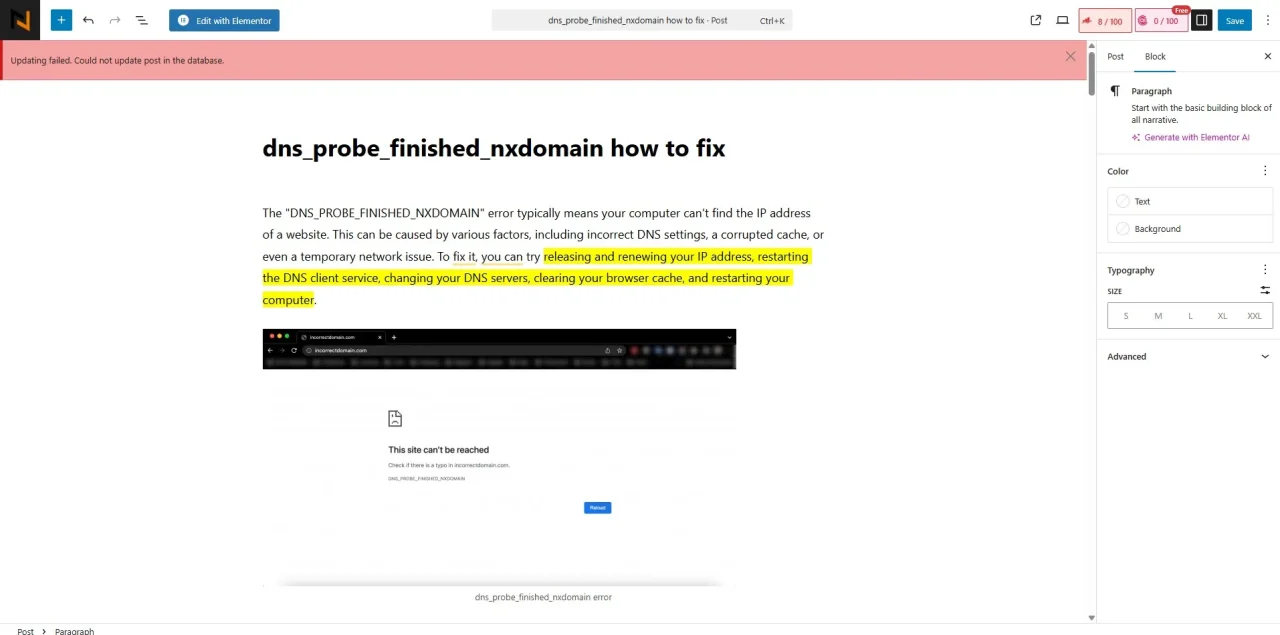
If you’ve ever hit “Update” on a WordPress post only to be met with the dreaded error message:
“Updating failed. Could not update post in the database”,
you’re not alone.
This common WordPress error can stop your workflow in its tracks—and it’s especially frustrating if you’re not sure why it’s happening or how to fix it.
Let’s break it down in plain English. In this guide, we’ll explore what this error means, why it happens, and how you can fix it—step by step.
What Does “Could Not Update Post in the Database” Actually Mean?
In simple terms, this error means WordPress tried to save your post… and something went wrong in the communication between your site and its database.
WordPress stores every post, page, setting, and comment in a MySQL database. When you hit “Update”, WordPress tries to write new information to that database. If that process fails—maybe because of permissions, configuration errors, or broken plugins—you get this error.
Why Does This Error Happen?
Real-World Causes You Can Actually Fix
Here are the most common reasons behind the “could not update post in the database” issue:
1. Database Permissions or Corruption
Your WordPress database might be misconfigured, corrupted, or lacking the right permissions for your user account to edit posts.
Example:
If your hosting provider updates MySQL or changes file permissions, your database might stop letting WordPress make changes.
2. Broken or Conflicting Plugins
A plugin—especially one that modifies custom fields or post metadata—can conflict with core WordPress functionality and block updates.
Real-world scenario:
You install a new SEO plugin and suddenly your updates stop working. That plugin might be rewriting post data incorrectly.
3. Theme Function Errors
Custom themes sometimes include post-saving logic (e.g., custom fields, meta boxes). If coded incorrectly, they can throw silent errors.
4. PHP Configuration Limits
Your server might not allow enough memory, execution time, or upload size for WordPress to process the update properly.
5. Security Plugins or Firewalls Blocking Admin-AJAX
Some security setups block WordPress’s admin-ajax.php script, which is crucial for saving posts.
How to Fix “Could Not Update Post in the Database” — One Step
Let’s go through practical, user-friendly fixes based on real use cases.
1. Remove Emoji
Remove all emojis in your post or article; that is a simple solution. Take action, and the problem is gone.
See also: Updating failed. Could not update the meta value of _elementor_edit_mode in database
Video Tutorial
Conclution
The “Updating failed. Could not update post in the database” error in WordPress can feel frustrating, but it’s also an opportunity to uncover deeper issues in your site’s setup.
By:
- Diagnosing plugin or theme conflicts,
- Repairing your database,
- Checking server and PHP configurations, and
- Remove all emojis in the post or article.

