Table of Contents
Free RDP without credit card options for students made simple. Discover safe, reliable alternatives to access remote desktops without hidden risks.
Introduction
Looking for free RDP without a credit card? You’re not alone. Many students, developers, and small businesses want remote desktop access for testing, learning, or lightweight workloads—without handing over sensitive payment details. The good news: there are legitimate methods to try RDP access for free, though knowing the pros, cons, and risks is key.
This guide explores free RDP servers, free Windows VPS trials, and student cloud credits, while also covering risks and safer alternatives.
What is RDP and Why Do People Want It Free?
RDP (Remote Desktop Protocol) is Microsoft’s technology that lets you connect to a computer or server from anywhere. It’s widely used for:
- Running Windows applications remotely
- Testing software or hosting lightweight services
- Learning server administration skills
- Business continuity and productivity
Free access without credit card requirements is attractive because it:
- Removes the risk of unexpected charges
- Appeals to students or beginners with no payment methods
- Helps users test before committing to a paid plan
Getting free RDP without credit card details is attractive for beginners, but knowing where to find legit free cloud servers for students is key to avoiding scams.
Can You Really Get Free RDP Without Credit Card?
Yes—but it depends on your situation. Here are proven methods:
Student Programs with Cloud Credits
- Microsoft Azure for Students: $100 yearly student cloud credits, no card required.
- GitHub Student Pack: Includes partner offers like free VPS or cloud instances.
- Google Cloud for Students: Free trials sometimes offered through verified student accounts.
These options provide a free cloud server for students with verified access and no hidden fees.
Free Windows VPS Trial Offers
Some hosting companies offer a free Windows VPS trial for a few days to test services. While most ask for card verification, smaller providers sometimes waive this.
Always-Free Cloud Tiers
- Oracle Cloud Free Tier – Offers up to 2 VMs free forever.
- Google Cloud Free Tier – 1 always-free micro VM (though card verification is typical).
- AWS Cloud Free Tier – One year of select instances free.
These cloud free tier plans give you reliable secure remote access solutions, though they may need card verification.
Risks of Using Random Free RDP Servers
Not all free RDP server offers are safe. Risks include:
- Data theft – Unsafe providers may monitor your sessions.
- Poor reliability – Free servers often shut down unexpectedly.
- Security issues – Weakly managed servers may expose you to malware.
Stick with official cloud free tier programs or verified student offers for safety.
Alternatives: Affordable & Safer Choices
If you can’t find a truly free option without card verification, consider cheap Windows VPS servers. Many providers offer starter plans for as low as $5/month.
- DigitalOcean, Vultr, Linode: Budget-friendly VPS hosting with free credits for new users.
- Coupon codes and referral bonuses often make the first month free.
This route gives you more stability and secure performance than relying on random free servers.
How to Get Free RDP Without Credit Card (Step-by-Step Guide)
Getting a free RDP server without providing payment details is easier if you follow the right steps. Here’s a practical process:
Step 1: Create a GitHub account
First, need a new fresh GitHub account using an email ID or sign up using a Google account. You can also use your old GitHub account. Do you want to create an account using email?

Step 2: Create a new repository
Create a new repository with a unique name that you have never used before. Make sure your repository is private.

Step 3: Create Tailscale Account
Create Tailscale Account using github account.

Download and install the Tailscale app base your system and sign in using the same account.

Step 4: Generate Auth key Tailscale Account
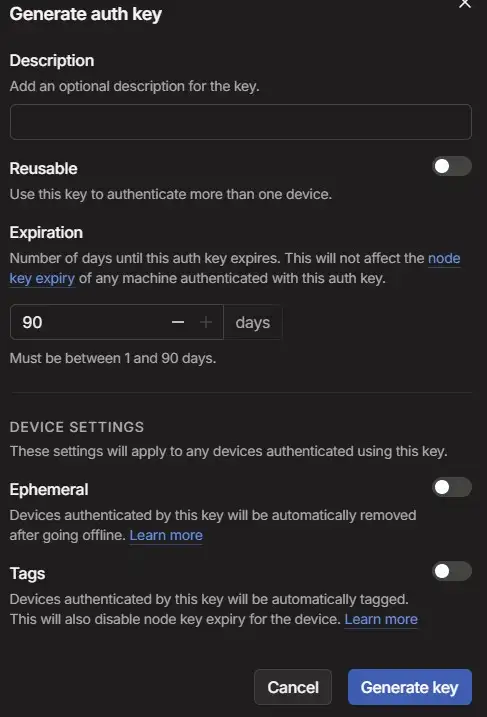
Generate an Auth Key for RDP on Tailscale Account. Go to settings -> keys -> Generate auth key and hit Generate key.

Step 5: Added a secret Variable
Go to the Settings option in the repository. Then go to the security section, find the “Secrets and variables” option & click on actions. Click “New Repository Secrets”.

Create a New secret with a secret name & secret ID, then click Add secret on github.

Step 6: Build Windows VPS
Go to the Actions section in the same repository. Then go to “set up a workflow yourself”.
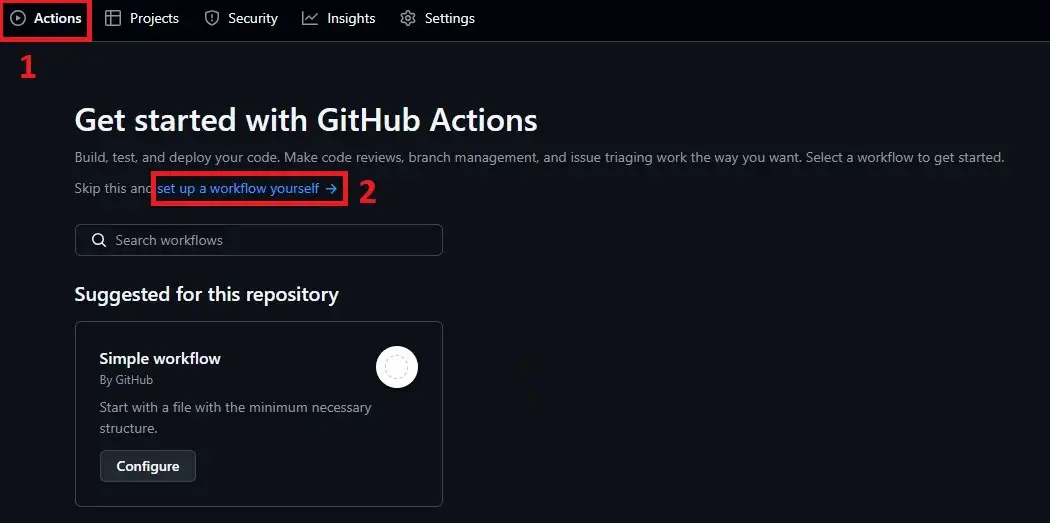
Input the Windows 11 vps code on “main.yml” where run windows datacenter 2025. code below here.
name: RDP

on:
  workflow_dispatch:

jobs:
  secure-rdp:
    runs-on: windows-2025
    timeout-minutes: 3600

    steps:
      - name: Configure Core RDP Settings
        run: |
          # Enable Remote Desktop
          Set-ItemProperty -Path 'HKLM:\System\CurrentControlSet\Control\Terminal Server' `
                             -Name "fDenyTSConnections" -Value 0 -Force

          # Require Network Level Authentication
          Set-ItemProperty -Path 'HKLM:\System\CurrentControlSet\Control\Terminal Server\WinStations\RDP-Tcp' `
                             -Name "UserAuthentication" -Value 1 -Force
          Set-ItemProperty -Path 'HKLM:\System\CurrentControlSet\Control\Terminal Server\WinStations\RDP-Tcp' `
                             -Name "SecurityLayer" -Value 1 -Force

          # Firewall rule for RDP
          netsh advfirewall firewall delete rule name="RDP-Tailscale"
          netsh advfirewall firewall add rule name="RDP-Tailscale" `
            dir=in action=allow protocol=TCP localport=3389

          Restart-Service -Name TermService -Force

      - name: Configure runneradmin for RDP
        run: |
          $username = "runneradmin"
          $password = "P@ssw0rd123!"  # ⚠️ Change this or use a GitHub secret

          # Enable account (in case it’s disabled)
          Enable-LocalUser -Name $username

          # Set password
          Set-LocalUser -Name $username -Password (ConvertTo-SecureString -AsPlainText $password -Force)

          # Ensure account has Administrator rights
          Add-LocalGroupMember -Group "Administrators" -Member $username -ErrorAction SilentlyContinue

          # Export credentials to env vars
          echo "RDP_USER=$username" >> $env:GITHUB_ENV
          echo "RDP_PASS=$password" >> $env:GITHUB_ENV

      - name: Install Tailscale
        run: |
          $tsUrl = "https://pkgs.tailscale.com/stable/tailscale-setup-1.82.0-amd64.msi"
          $installerPath = "$env:TEMP\tailscale.msi"

          Invoke-WebRequest -Uri $tsUrl -OutFile $installerPath
          Start-Process msiexec.exe -ArgumentList "/i", "`"$installerPath`"", "/quiet", "/norestart" -Wait
          Remove-Item $installerPath -Force

      - name: Establish Tailscale Connection
        run: |
          & "$env:ProgramFiles\Tailscale\tailscale.exe" up --authkey=${{ secrets.TAILSCALE_AUTH_KEY }} --hostname=gh-runner-$env:GITHUB_RUN_ID

          $tsIP = $null
          $retries = 0
          while (-not $tsIP -and $retries -lt 10) {
              $tsIP = & "$env:ProgramFiles\Tailscale\tailscale.exe" ip -4
              Start-Sleep -Seconds 5
              $retries++
          }

          if (-not $tsIP) {
              Write-Error "Tailscale IP not assigned. Exiting."
              exit 1
          }
          echo "TAILSCALE_IP=$tsIP" >> $env:GITHUB_ENV

      - name: Verify RDP Accessibility
        run: |
          Write-Host "Tailscale IP: $env:TAILSCALE_IP"
          $testResult = Test-NetConnection -ComputerName $env:TAILSCALE_IP -Port 3389
          if (-not $testResult.TcpTestSucceeded) {
              Write-Error "TCP connection to RDP port 3389 failed"
              exit 1
          }
          Write-Host "TCP connectivity successful!"

      - name: Maintain Connection
        run: |
          Write-Host "`n=== RDP ACCESS ==="
          Write-Host "Address: $env:TAILSCALE_IP"
          Write-Host "Username: $env:RDP_USER"
          Write-Host "Password: $env:RDP_PASS"
          Write-Host "==================`n"

          while ($true) {
              Write-Host "[$(Get-Date)] RDP Active - Use Ctrl+C in workflow to terminate"
              Start-Sleep -Seconds 300
          }
then hit commite chenges.
Step 7: Run to build
go to the action section again, then click “RDP” then -> “run workflow” -> again “run workflow”.
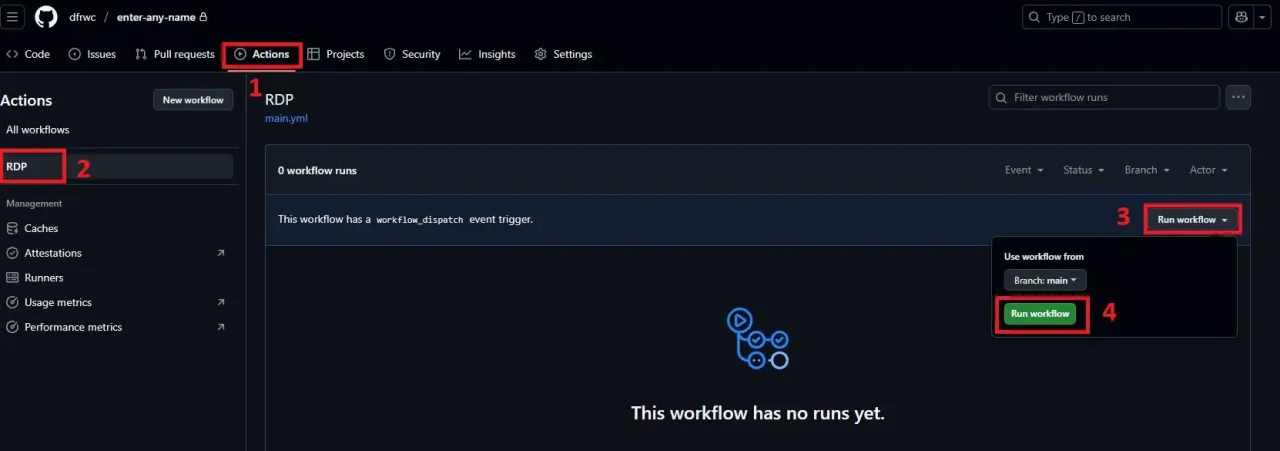
click again rdp

Again click Secure RDP
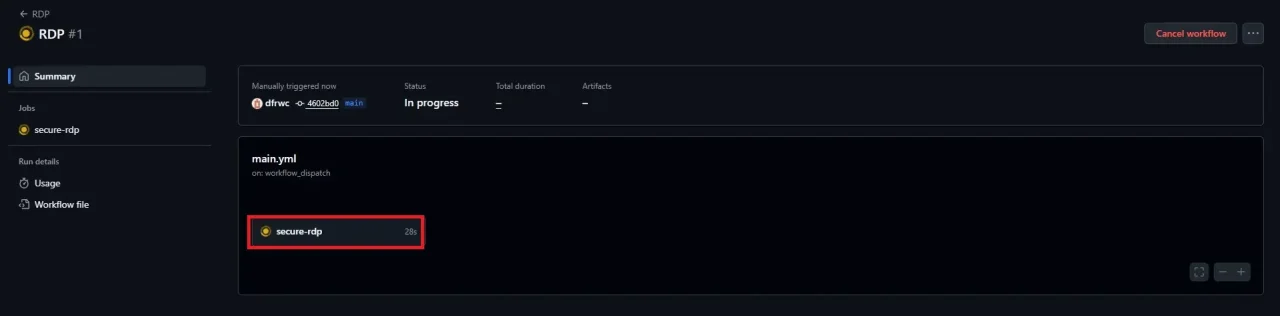
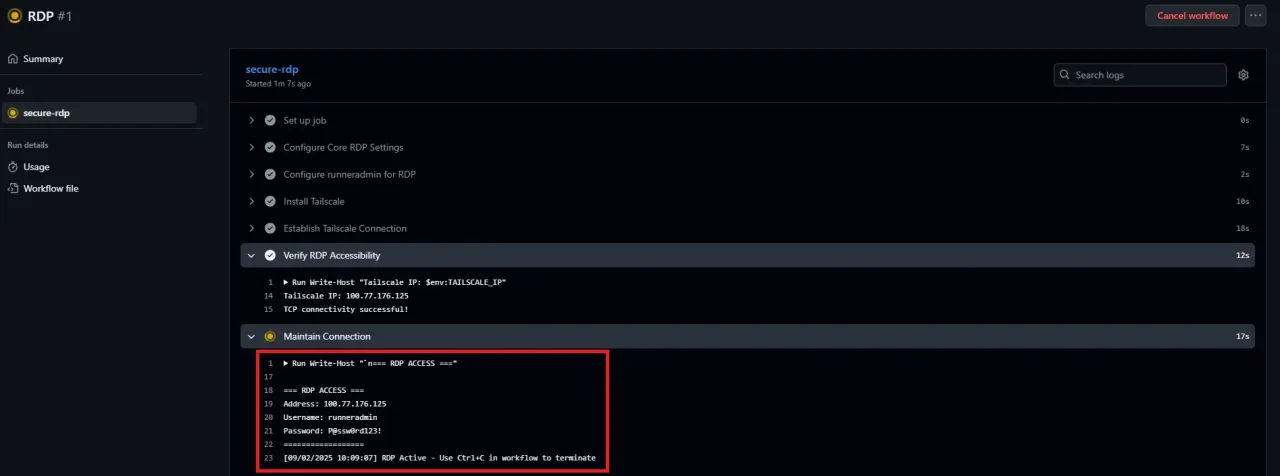
Finally, see the build process start. Here you see the IP address for RDP, User Name & password.
Step 8: Connect RDP
Open a remote desktop connection on a Windows machine.
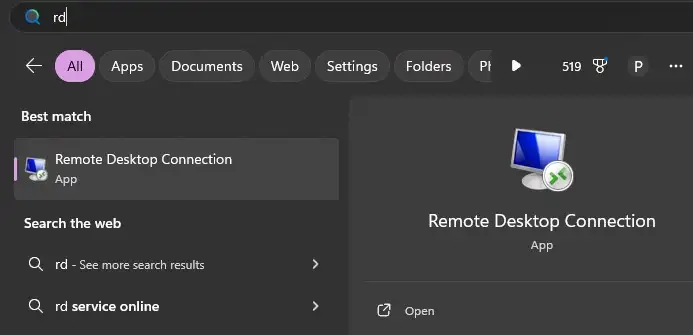
Input the IP Address and username, then click the “connect” button.

Then input the password.
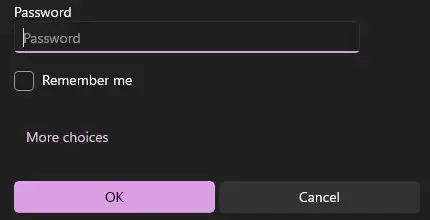
Wait a few seconds then click ok then view windows server datacenter 2025.

Donot close cmd terminal.
Video Guide
Conclusion
Yes, you can get free RDP without credit card details—but the best options are through student cloud credits, free Windows VPS trials, or cloud free tier providers.
If you need stability, consider a cheap Windows VPS server—an affordable, secure upgrade that saves time and headaches.
Next step: Explore our related guides on best student VPS hosting, cloud free tier comparisons, and affordable RDP solutions.
FAQs
-
Can I get free RDP without credit card verification?
Yes, it’s possible. Students can access student cloud credits from Microsoft Azure, GitHub, or Google Cloud. Some smaller hosts also provide short free RDP server trials without requiring payment.
-
Which providers offer a free Windows VPS trial?
Many hosting companies offer a free Windows VPS trial for testing. Some require card verification, but promotions and coupons may unlock free access without one.
-
What is the safest free cloud server for students?
The safest free cloud server for students comes from trusted providers like Azure for Students, Google Cloud Student credits, and Oracle Cloud Free Tier. These are backed by reputable companies with strong security.
-
Are free RDP servers secure for remote access?
Not always. Random free RDP servers can expose your data. For true secure remote access solutions, stick with official providers’ cloud free tier or student offers.
-
What’s the cheapest way to get a reliable RDP or VPS?
If free isn’t an option, go for a cheap Windows VPS server. Providers like Vultr, DigitalOcean, and Linode start at around $5/month and often give new users credits.