Table of Contents
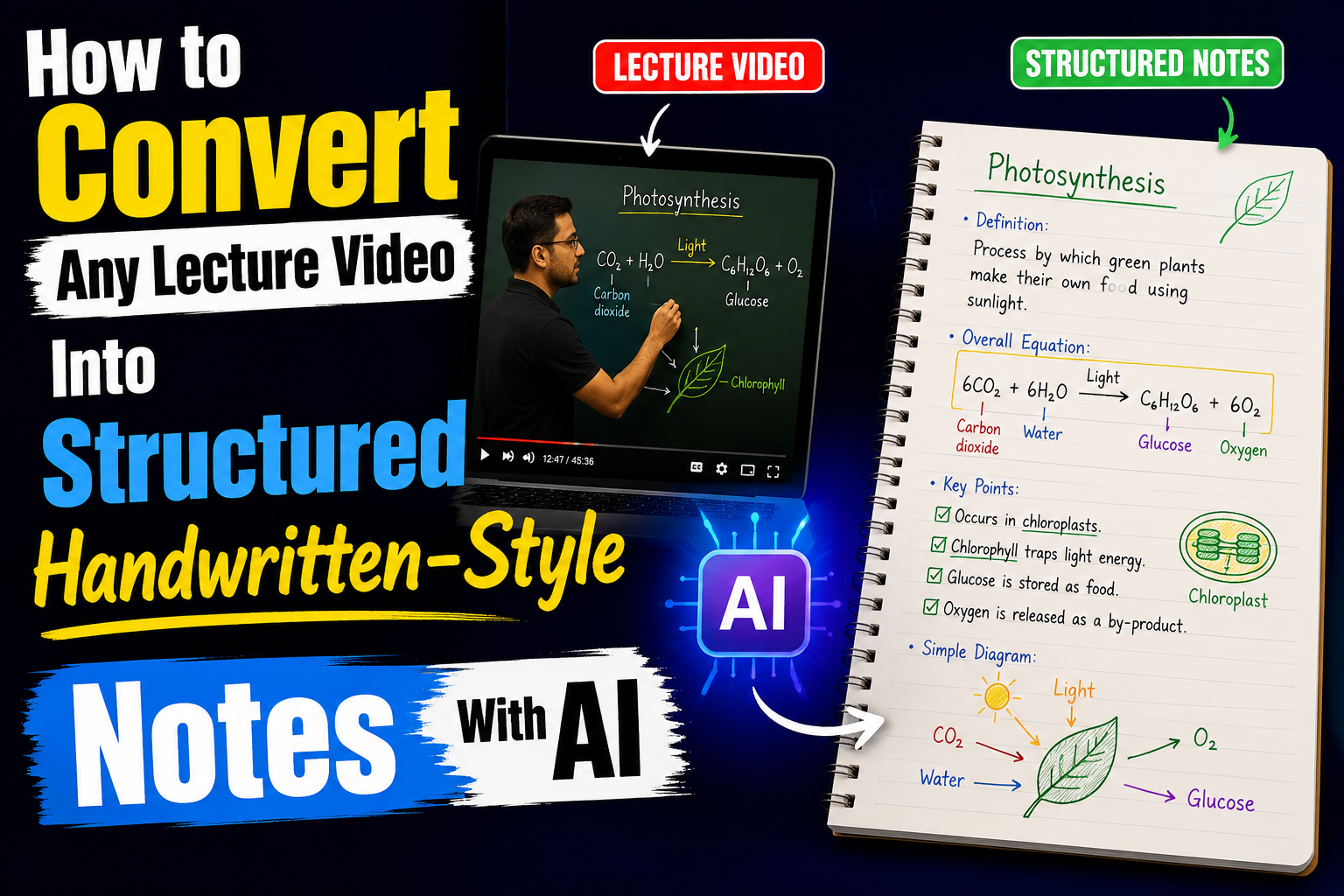
Long lectures can contain valuable explanations, examples, and exam points, but turning them into useful notes manually takes time. A practical AI workflow is to extract a lecture transcript, organize it into revision notes with ChatGPT, then format the result in Gemini Canvas as a clean, notebook-style study document.
This approach works for YouTube lectures, online classes, and other study material with a usable transcript. It is especially useful when preparing topic-wise revision notes for competitive exams, college subjects, school lessons, or language courses.
What You’ll Learn
- Extract a lecture transcript, then turn it into organized revision notes with AI.
- Use clear prompts to request headings, key points, highlights, tables, and exam-focused summaries.
- Create a styled HTML notes page that can be shared, downloaded, or printed.
- Review every AI-generated note against the original lesson before relying on it for exams.
What You Need Before You Start
- A public YouTube lecture or another lesson that has a usable transcript.
- A transcript extraction tool, such as a YouTube-to-transcript website.
- An AI writing tool, such as ChatGPT or Google Gemini.
- A browser for opening, sharing, or printing the finished HTML notes.
For very long lectures, process one chapter or short segment at a time. Smaller inputs are easier to verify and usually produce more focused notes.
Step 1: Start With a Lecture That Has Clear Educational Content
Choose a lecture with a focused topic and reasonably clear audio. AI note generation is only as reliable as the source transcript, so a well-explained lesson generally produces better study notes than a fast, unstructured discussion.
Before beginning, decide what type of output you need:
- Detailed notes for first-time study
- Topic-wise notes for a chapter or unit
- Quick revision sheets for last-minute review
- Exam-oriented notes with dates, facts, definitions, and key terms
- Notebook-style notes that are easier to read, save, share, or print
A history lecture, for example, may need timelines and important personalities. A science lecture may need definitions, processes, formulas, and labelled examples. Tell the AI which format you want instead of accepting a generic summary.
Step 2: Extract the Full Transcript From the Lecture
Copy the link to the lecture and use a transcript extraction tool to generate the complete text. A free YouTube transcript service can take a video URL and return its spoken content as copyable text.
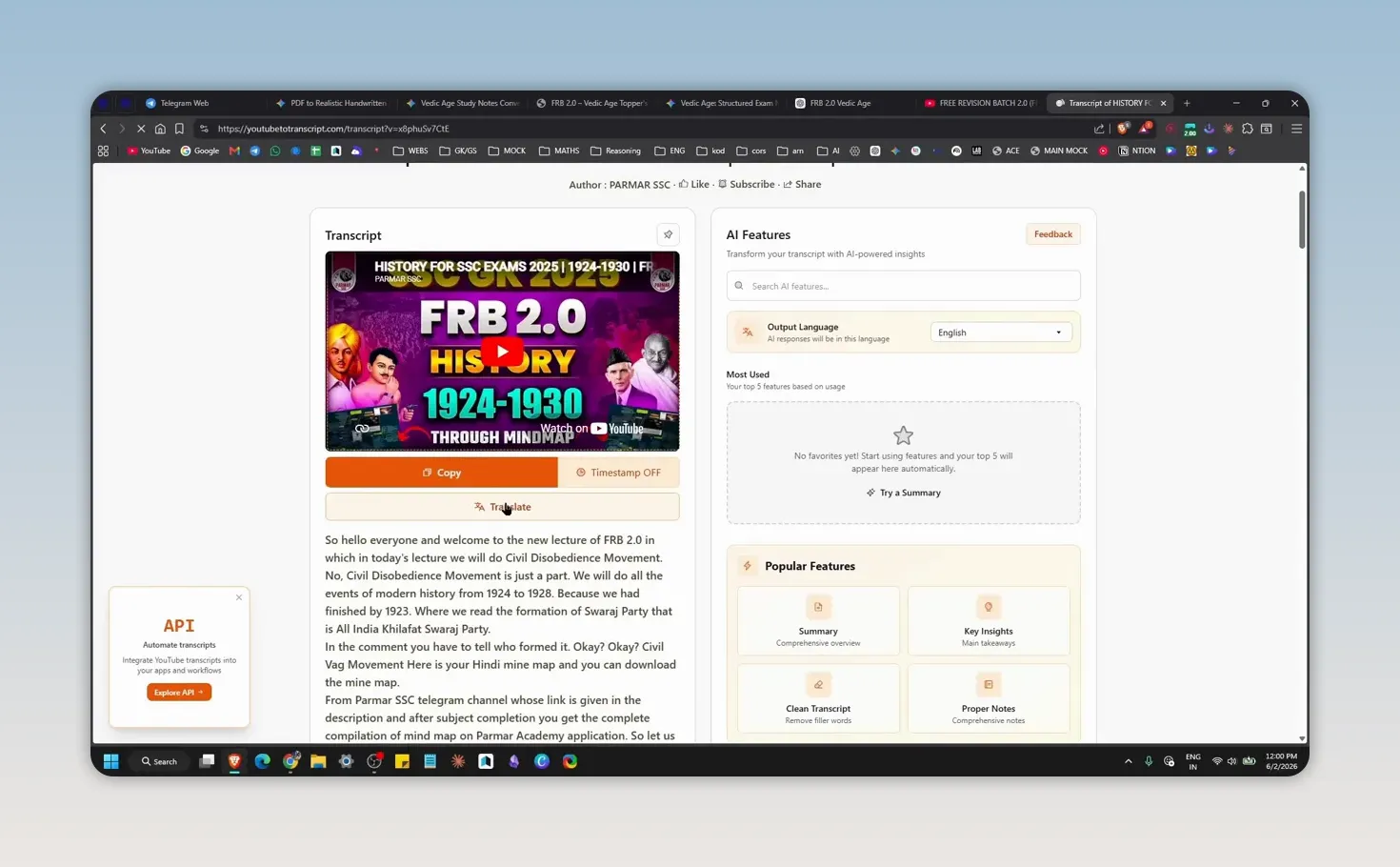
When the transcript is ready:
- Check that the lecture title and language are correct.
- Select the full transcript.
- Copy the text into a temporary document if it is very long.
- Keep headings, timestamps, or repeated filler text only if they help identify sections.
If the transcript tool offers language selection, choose the language that best matches the lecture. This can make the first AI output easier to understand and edit.
Important: A transcript can mishear names, technical terms, dates, formulas, or numbers. Treat it as a draft source, not a final authority.
Step 3: Use ChatGPT to Turn Raw Transcript Text Into Study Notes
Paste the copied transcript into ChatGPT and ask it to organize the material into structured notes. This first pass is useful for removing repeated speech, grouping related ideas, and creating a logical sequence of headings and subheadings.
A short prompt can work:
Transform this transcript into detailed, structured study notes.
Use clear headings, subheadings, bullet points, definitions, examples,
and key facts. Remove repeated filler and retain all important concepts.
Prompt for Exam-Ready Lecture Notes
Turn the transcript below into accurate, structured revision notes.

Requirements:
- Organize the material into clear topic-wise headings and subheadings.
- Explain definitions in simple language.
- Use concise bullet points for facts, causes, effects, features, and examples.
- Preserve names, dates, formulas, and technical terms from the transcript.
- Add a short quick-revision section at the end.
- Do not add facts that are not stated in the transcript.
- Flag any unclear or incomplete point as “Verify from source.”

Transcript:
[Paste transcript here]
For exam preparation, add the exam name or subject to the request. For example, ask for “SSC-style revision notes,” “UPSC prelims revision points,” or “college lecture notes with definitions and examples.” This helps determine the level of detail and format.
Ask for a Second-Pass Improvement
Once the first version is ready, do not immediately format it. Review it for missing sections and request focused improvements such as:
- “Create a table for dates, events, and significance.”
- “Separate causes, consequences, and key personalities.”
- “Make a one-page quick-revision sheet from these notes.”
- “List important terms with one-line meanings.”
- “Identify statements that need verification from the original lecture.”
This two-step approach is more dependable than asking for highly designed notes from an unreviewed transcript.
Step 4: Improve the Notes Before Designing Them
Do not send an unreviewed AI draft straight into a final printable format. Spend a few minutes making the content study-ready first.
Use this content-quality checklist
- Are all major lecture topics present?
- Are definitions short and understandable?
- Are dates, figures, names, and formulas correct?
- Have repeated explanations been removed?
- Are examples placed beneath the concept they explain?
- Can each heading be revised independently?
- Does the document distinguish core facts from supporting detail?
For a long lecture, split the transcript into smaller parts before processing it. For example, separate a three-hour course into individual topics or sections. This reduces the chance of missing material and makes the final notes easier to revise.
For mathematical or numerical material, include an extra instruction such as: “Keep equations exactly as given, show formulas clearly, and do not invent steps that are absent from the source.”
Step 5: Paste the Structured Notes Into Gemini
Once ChatGPT has produced a cleaned and structured version, copy that output into Gemini. The purpose of this second stage is to transform the text into a more visual, notebook-like layout that is easier to scan during revision.
Use a prompt that specifies both the study structure and the desired design. Avoid vague requests such as “make it beautiful.” Instead, state what should appear on the page.
Here is a practical formatting prompt:
Convert the following structured notes into a neat handwritten-style
revision notebook in HTML.

Formatting requirements:
- Use a ruled-paper or clean notebook-paper look.
- Create a clear title and topic-wise sections.
- Use bold section headers, short bullets, highlighted keywords, and boxes
  for important facts.
- Include tables only where comparisons improve clarity.
- Add quick tips and a final revision recap.
- Keep the layout clean, readable, and suitable for printing.
- Do not add facts that are not present in the notes.
You can adapt the prompt for the subject. For instance, request a timeline for history, a formula box for maths, a process flow for science, or vocabulary tables for English.
Step 6: Create Handwritten-Style HTML Notes in Gemini
In Gemini, use the plus menu and select Canvas. Canvas is useful because it can create the notes as an editable visual document rather than leaving them as ordinary chat text.
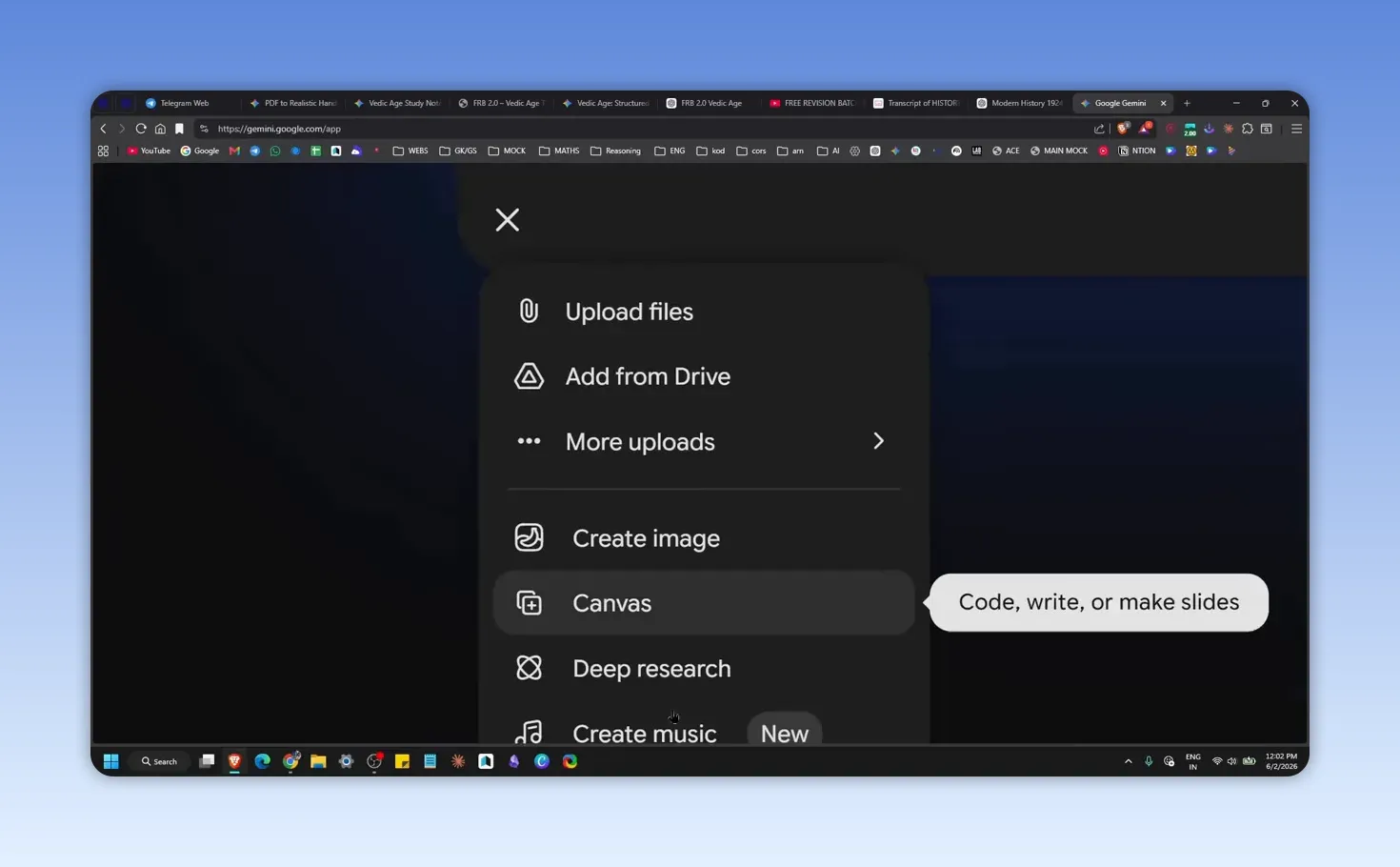
Ask for a readable design rather than simply asking for “handwritten notes.” Specify the layout features that help study: short sections, clear headings, highlighted keywords, topic blocks, tables where appropriate, and a final revision timeline or summary.
Prompt for Handwritten-Style HTML Notes
Convert these structured notes into a single, clean HTML revision notebook.

Design requirements:
- Use a ruled-paper or clean-parchment background.
- Use a handwritten-style appearance that remains easy to read.
- Add bold topic headings and clear section dividers.
- Highlight essential keywords, dates, formulas, and definitions.
- Use boxed callouts for important facts and quick tips.
- Include tables only when they improve comparison or memorization.
- Add a concise revision timeline or quick-recall section at the end.
- Keep all facts faithful to the supplied notes.
- Do not invent diagrams, examples, dates, or claims.

Notes:
[Paste verified structured notes here]
Use formatting to improve recall, not to make every sentence colorful. If too much text is highlighted or placed in boxes, the page becomes harder to scan.
Step 7: Check the Generated Notes for Readability and Accuracy
A polished layout does not guarantee correct notes. Review the final document with the original lecture content in mind.
Pay particular attention to:
- Headings: They should match the actual lecture topics.
- Highlighted terms: Important keywords should be emphasized, not random phrases.
- Tables and timelines: Confirm dates, order, and comparisons.
- Condensed points: Ensure shortening has not changed the meaning.
- Page flow: Each topic should be readable without excessive scrolling or clutter.
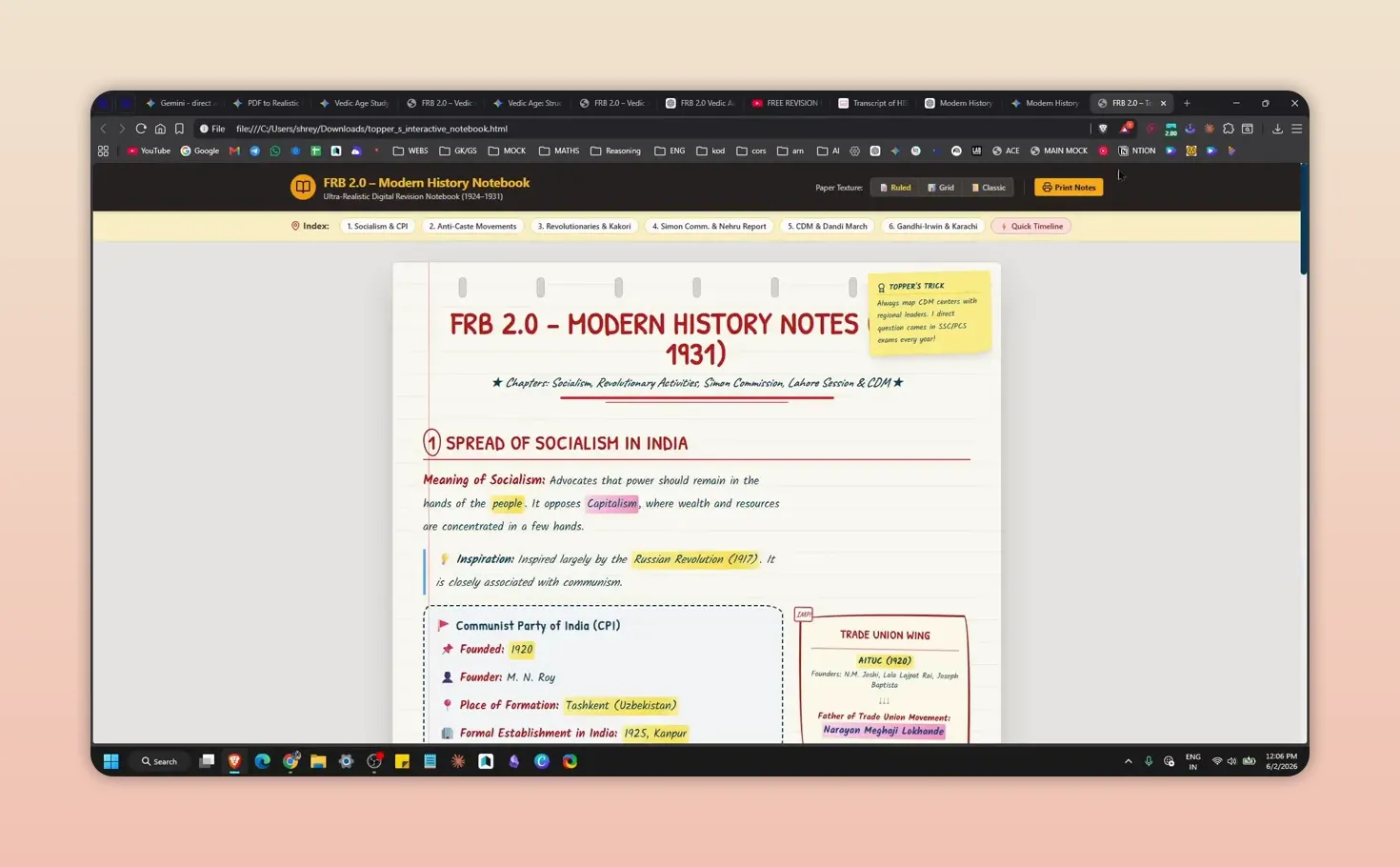
If the tool becomes slow or the canvas does not load fully, refresh the page and reopen the generated notes. Generation can occasionally lag, particularly with longer source material.
Step 8: Download, Print, or Share the Final Notes
When the notes are ready, use the document controls to download the output. An HTML version can be opened in a browser, shared through a link when available, or printed as physical revision notes.
Before printing, check:
- Whether the page size and margins look correct
- Whether the chosen paper texture still prints clearly
- Whether colored highlights remain readable in grayscale
- Whether tables fit the page without being cut off
- Whether each page has a useful heading or topic label
For sharing, send the generated HTML link or downloaded file only after a final accuracy check. This is particularly important for group revision notes and exam preparation material.
Step 9: Use AI Notes as a Revision Tool, Not a Substitute for Learning
AI can reduce the time spent formatting and organizing notes, but it should not replace understanding the lesson. The strongest workflow is:
- Study the lecture or source material.
- Generate structured notes with AI.
- Verify important claims against the source.
- Mark difficult sections in your own words.
- Use the final document for active recall and repeated revision.
For better retention, turn each topic heading into a question. Cover the answer, recall it from memory, then use the notes to check what you missed. This converts a visually attractive document into an active study resource.
Step 10: Avoid Common AI Note-Making Mistakes
Copying incomplete transcripts
Always confirm that the transcript includes the whole lecture. Missing the last section can remove conclusions, exam tips, or final examples.
Using an overly short prompt
A request for “notes” may produce a plain summary. Specify topic-wise organization, important facts, keywords, revision boxes, tables, or a handwritten-style design when those features matter.
Trusting every generated fact
Transcript errors can become note errors. Verify proper nouns, historical dates, formulas, legislation, percentages, and technical vocabulary.
Making notes too decorative
Heavy colors, too many icons, and oversized callout boxes can make revision slower. Prioritize readable typography, short points, useful highlights, and clear organization.
Skipping the review stage
Even well-formatted notes may omit a detail or connect ideas incorrectly. Review before printing, sharing, or relying on them for an exam.
Step 11: Build a Repeatable Lecture-to-Notes Workflow
Once the process is familiar, reuse the same sequence for every subject:
- Get the full lecture transcript.
- Use ChatGPT to clean and organize the source.
- Check the factual content.
- Use Gemini Canvas to create the visual notes layout.
- Review, download, print, or share the final result.
Save subject-specific prompt versions so you do not have to rewrite instructions every time. A history prompt may prioritize timelines and personalities, while a science prompt may prioritize definitions, processes, diagrams, and formula boxes.
The result is a faster way to turn lengthy teaching material into organized revision notes without manually formatting every page. The key is to combine AI speed with careful human review, especially for exam-relevant details.
Convert the uploaded PDF into ultra-realistic handwritten study notes, just like a topper’s notebook.

Use blue gel pen for explanations and step-by-step points.

Use bold red marker for headings, chapter names, theorems, laws, and definitions.

Use yellow highlighter for important keywords, formulas, dates, and final answers.

Draw rough circles or underlines around very important points.

Write in short bullet points with proper spacing like a real notebook.

Add hand-drawn diagrams, graphs, maps, or flowcharts on the center or right side, clearly labeled with arrows.

Mark exam-important points and add small notes like “Exam Tip”, “Common Mistake”, or “Memory Trick”.

Add small, cute doodles in the margins.

Keep natural handwriting imperfections so it doesn’t look robotic.

Keep everything 100% accurate to the PDF. Don’t skip important topics and don’t add extra information.

Final output should look like scanned handwritten pages, perfect for revision and exams.
Frequently Asked Questions
Can AI turn any YouTube lecture into notes?
AI can organize lectures that have a usable transcript. Results are strongest for spoken explanations. Lessons that rely heavily on slides, diagrams, equations, or board work need manual additions and verification.
Are AI-generated handwritten notes actually handwritten?
They are digital notes styled to resemble handwritten study material. The content and layout are generated digitally, even when the page uses ruled paper, highlights, and handwriting-inspired typography.
Should I use ChatGPT or Gemini for lecture notes?
Either tool can organize a transcript into structured notes. A useful approach is to create and review the outline first, then use Gemini Canvas when a formatted HTML notes page is desired.
How can I make AI notes more accurate?
Clean the transcript first, provide a detailed prompt, process long material in smaller sections, and verify all names, dates, formulas, and technical details against the original lesson.